






News
Swift 6.2 New Capabilities – Introducing Trellis Mode
5th February 2026 Product ReleaseSwiftXMPP
Swift is a modern web chat client, designed to be used anywhere, on any device. It enables you to deploy a high-capacity, secure chat solution across your network with zero footprint deployment.
Swift is based on the XMPP (eXtensible Messaging and Presence Protocol) family of open standards, which is the leading open standard for chat.
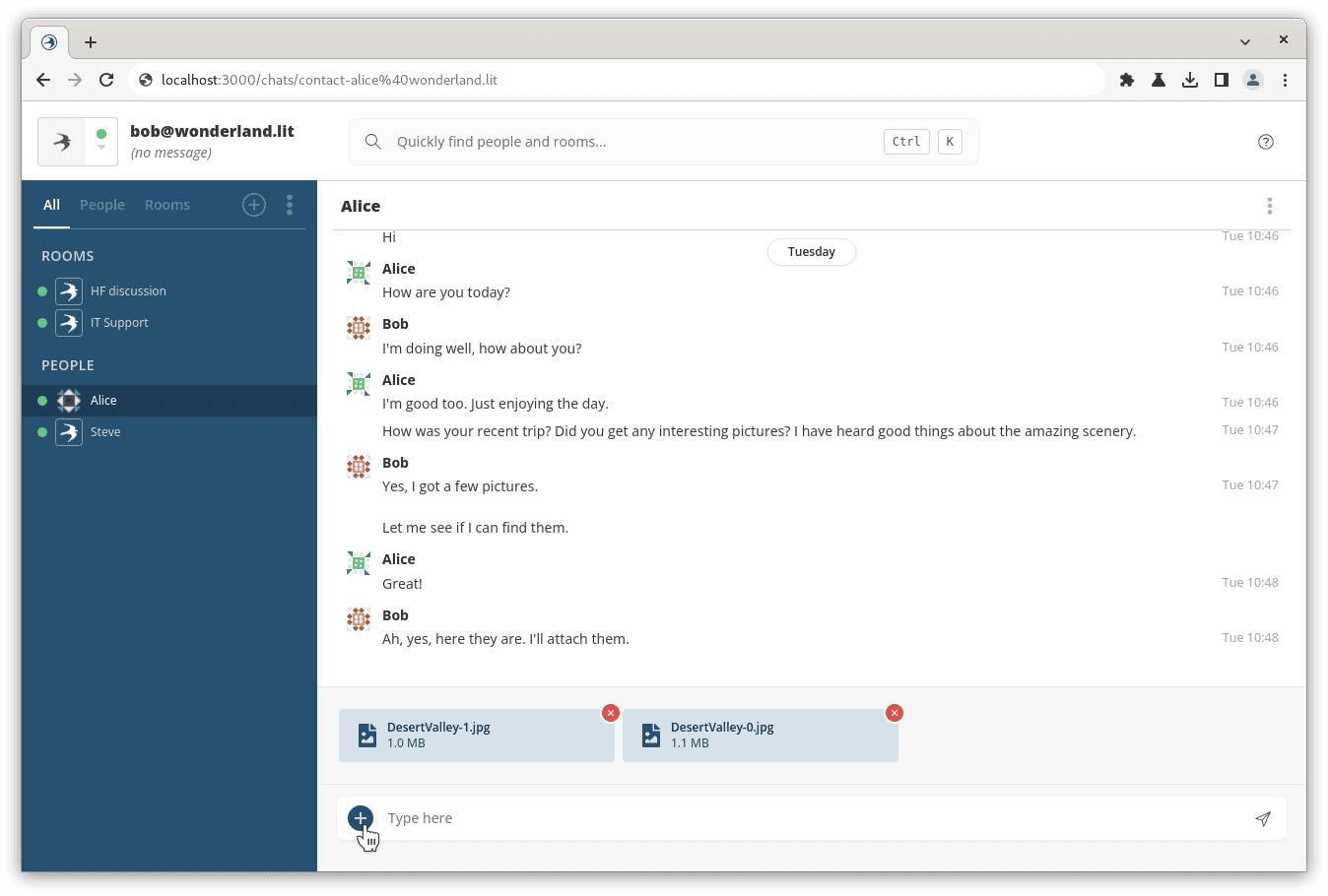
The latest release of Swift brings with it several new features to improve the user experience and make working with Swift more productive.
Introducing Trellis Mode
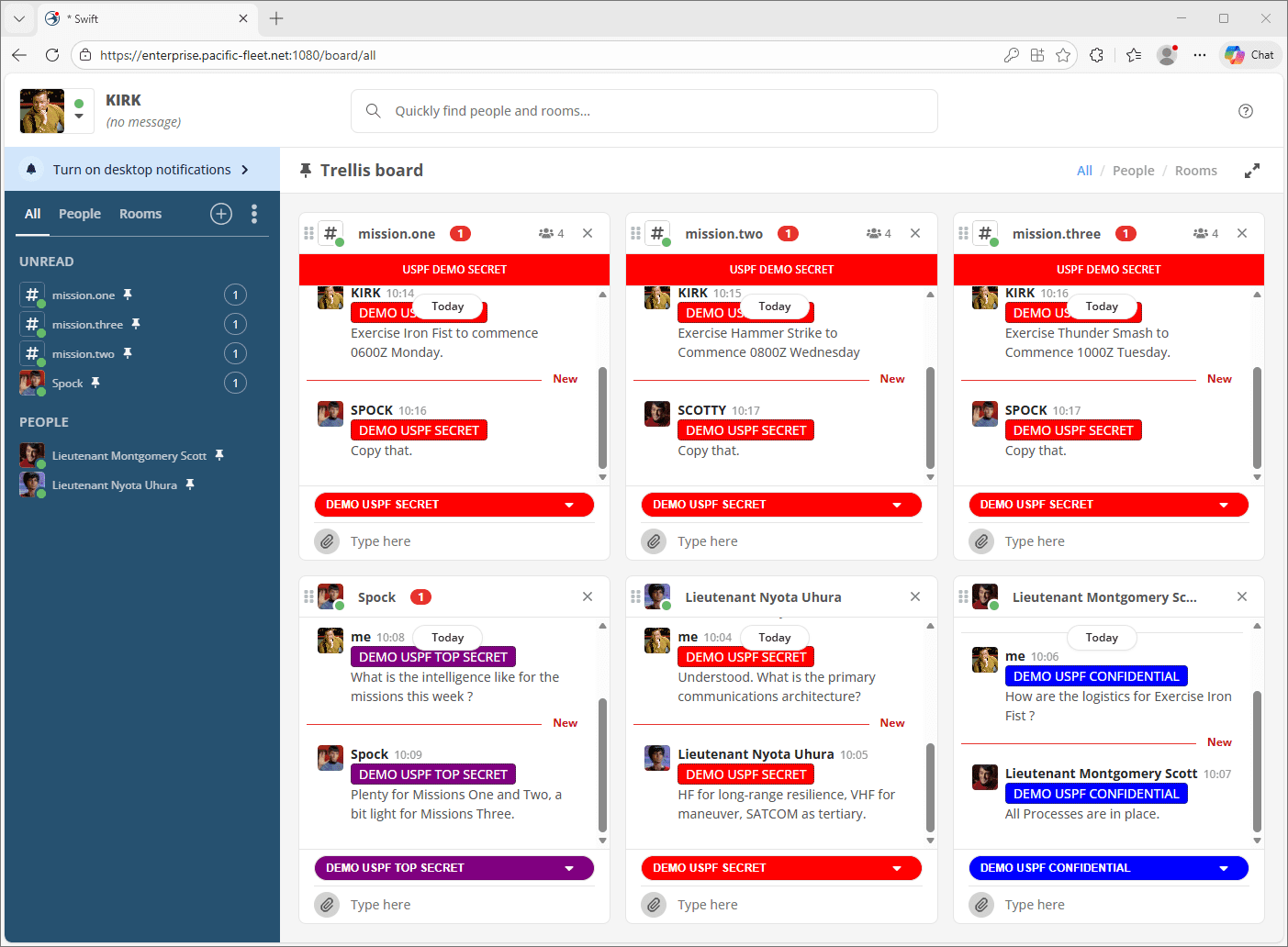
Trellis mode enables users to tile several MUC (Multi-User Chat) rooms and 1:1 Chat windows onto one screen, allowing operators to view multiple windows at once. These windows can be organised and laid out in any order, providing a quick, easily configurable solution to users who need to monitor multiple chat windows simultaneously.
Trellis mode can be viewed as a normal chat layout, as shown above, or in ‘Fullscreen mode’, which removes the roster panel and brings the chat windows into focus.
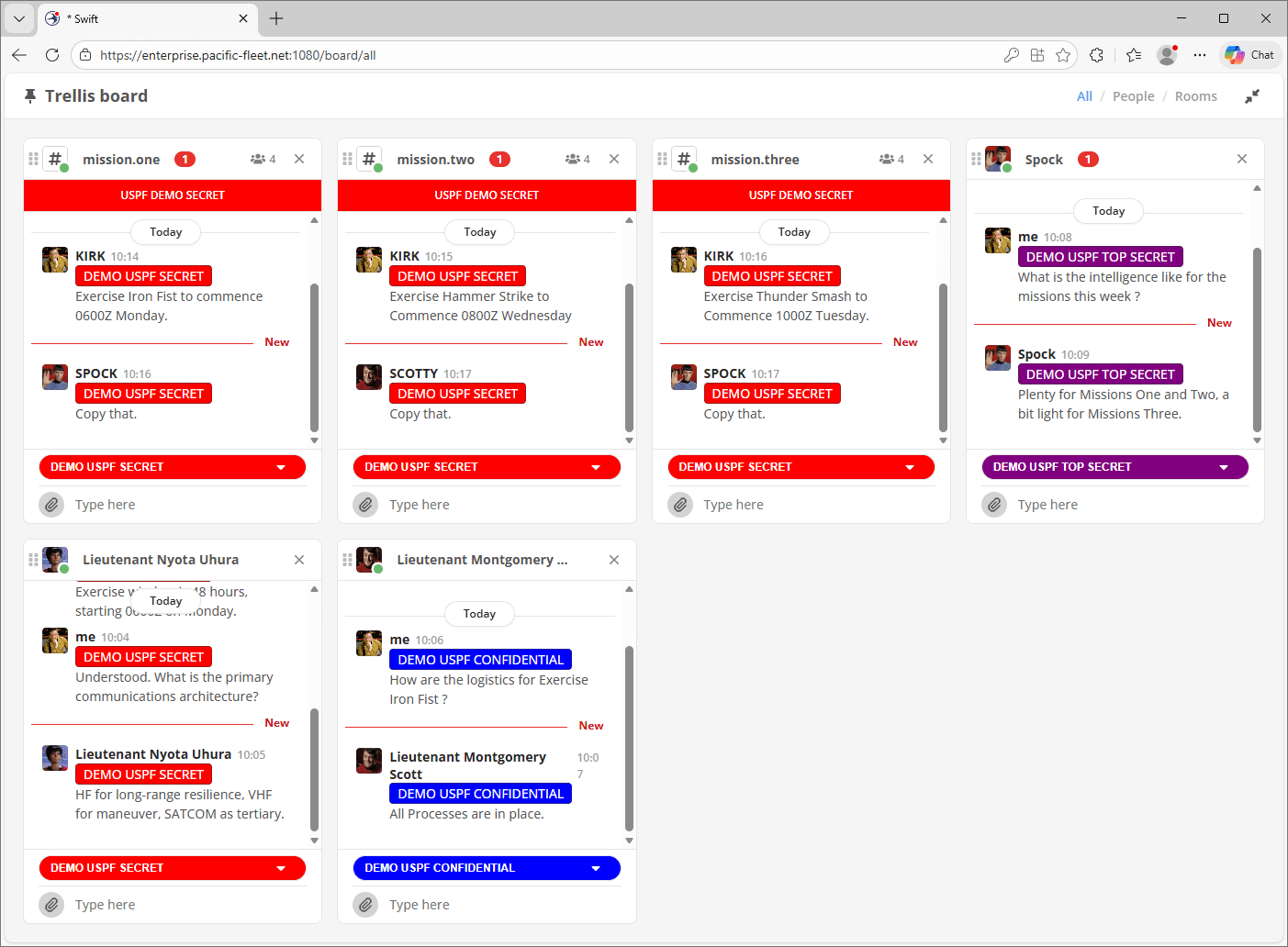
The Trellis mode can be filtered to show all pinned chats, 1:1 or MUC rooms only, and chat windows can be reordered and rearranged to suit the user’s preferences. Depending on the screen size, you can have more or fewer chat windows pinned to the trellis board.
Dark Mode
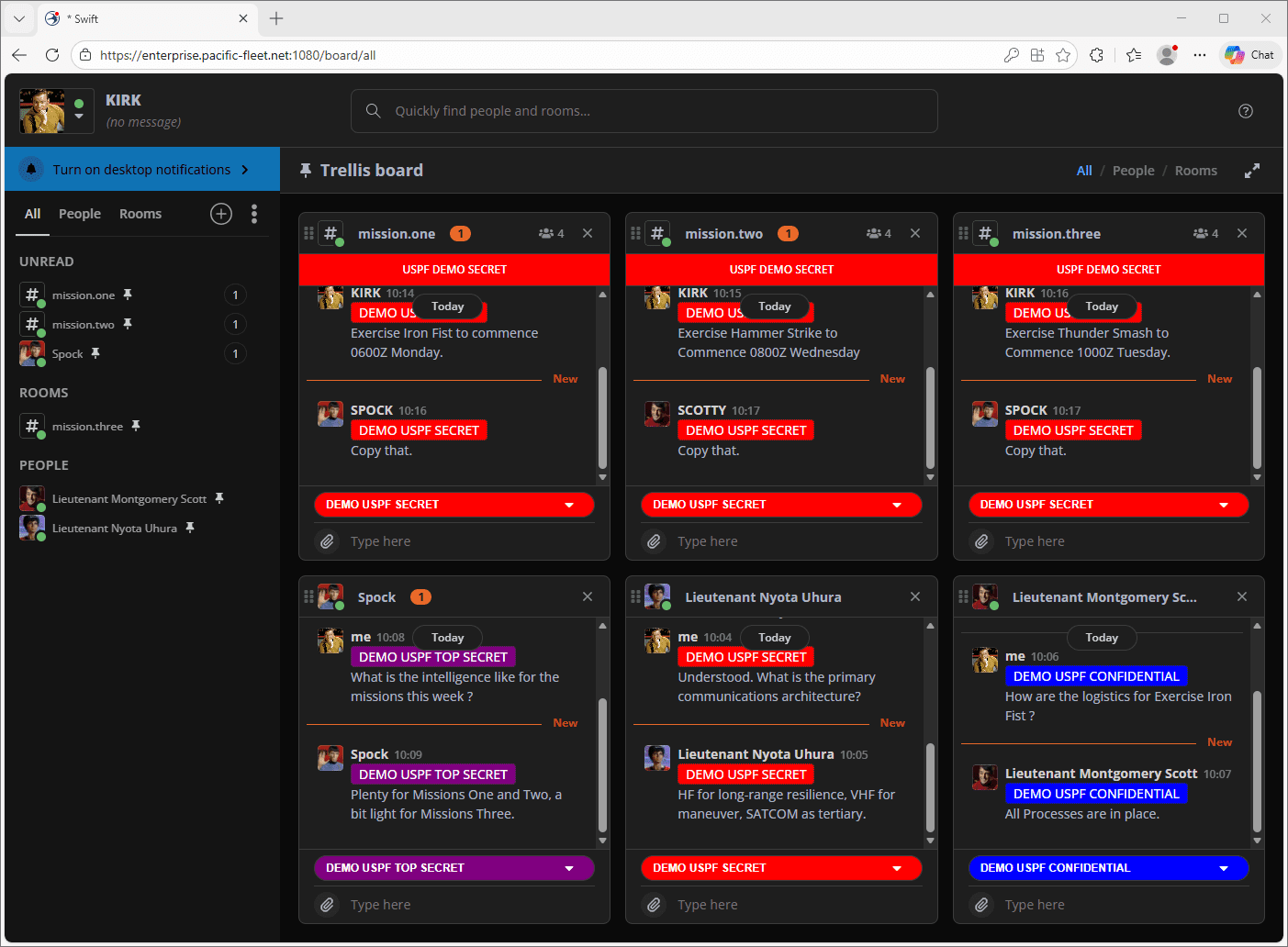
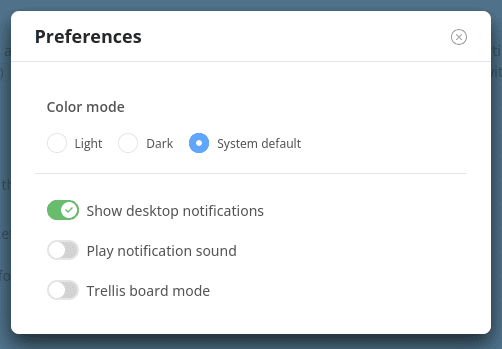
You can now choose to run Swift with a darker UI variant (as shown above with Trellis mode active). Giving users the choice to change the UI colour to best suit their environment. This can be activated from the preferences section within each user’s account and gives users the option to set ‘Light’, ‘Dark’, or leave it to ‘System Default’ so that the Swift UI updates based on the system settings.
Password Checking
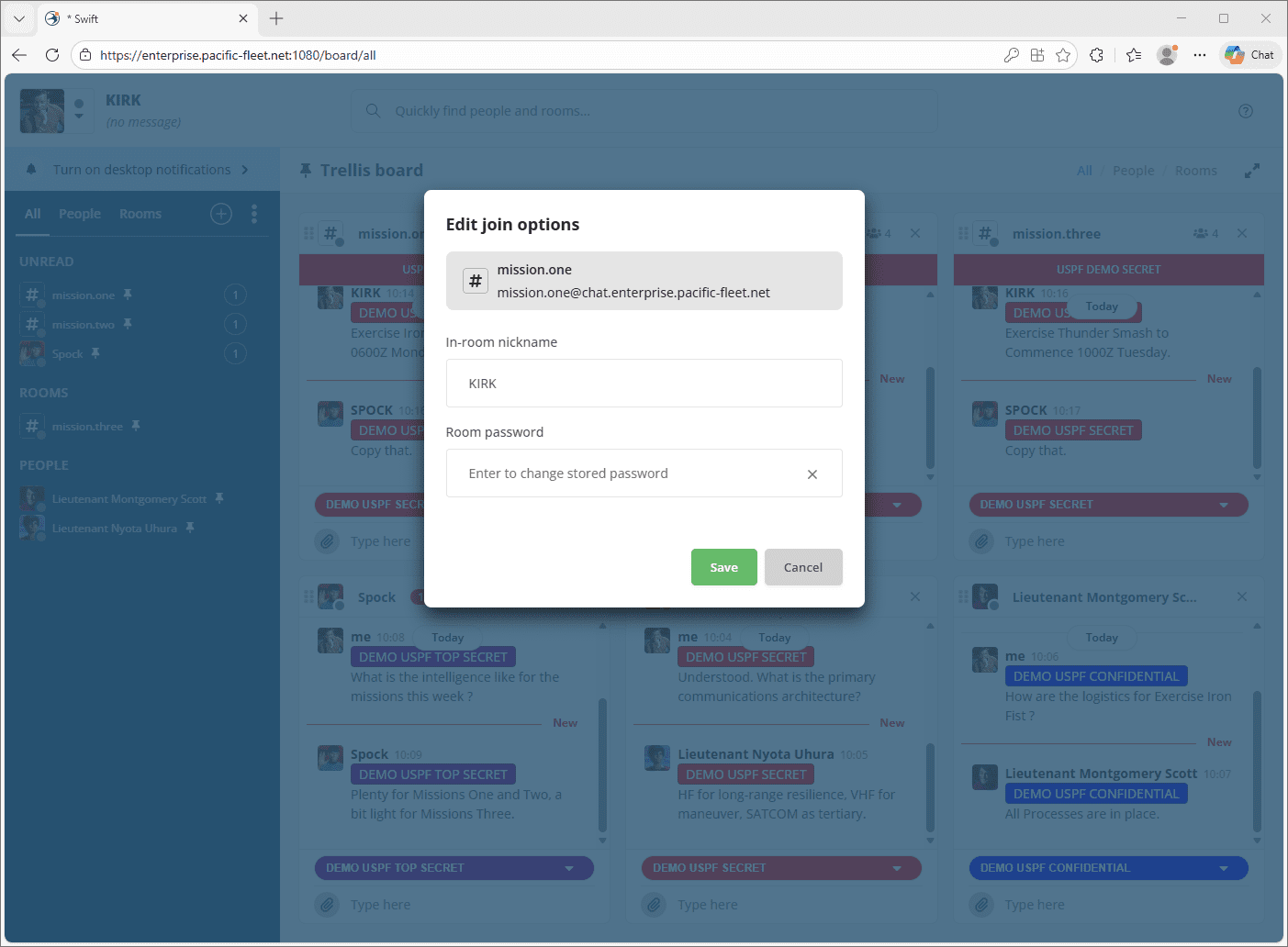
Passwords can now be set for MUC rooms, providing a way to secure chat rooms and ensure that only the people who are supposed to be in a room have access. Once in a MUC room, members can update the password by selecting the room menu and clicking ‘Edit Join Options’.
Password Reset
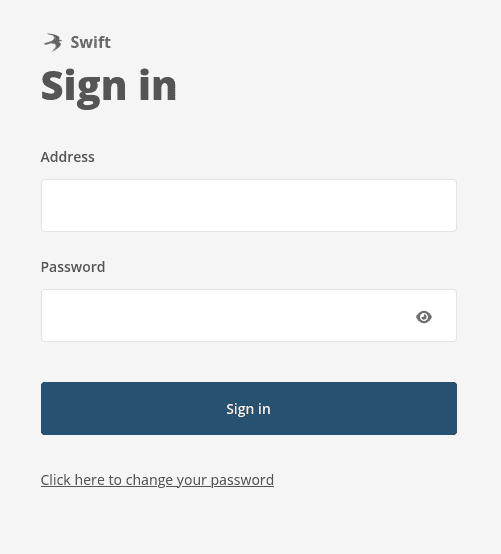
Users can now reset their passwords at the Swift login screen. This is a configurable option that administrators can turn on/off depending on their preferences and security requirements.
If you’d like to test out our new Swift features or have any questions about this update to Swift, you can get in touch with us here.